Integrations
Gitlab Integration in TraqNext
Overview
TraqNext integrates with GitLab to fetch issues assigned to your team members, allowing easy time tracking on GitLab issues directly from the TraqNext Desktop App.
Step 1: Open Integrations in TraqNext
- Log in to your TraqNext web app.
- Go to Integrations from the right-side menu.
- Click on Integrations.
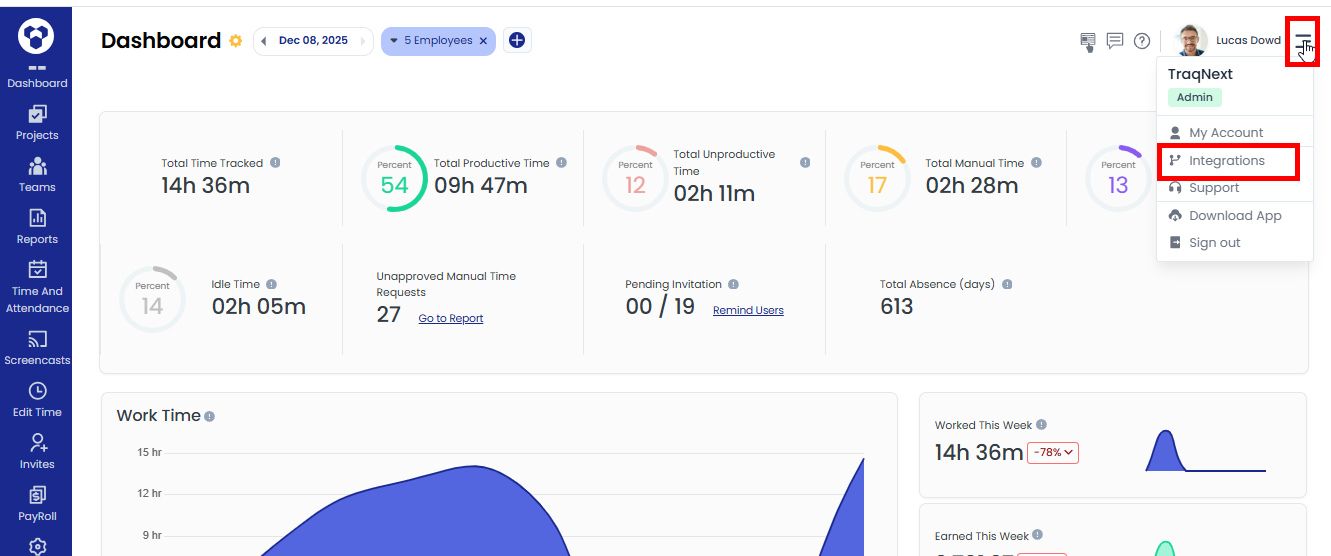
- You can see the list of available integrations.
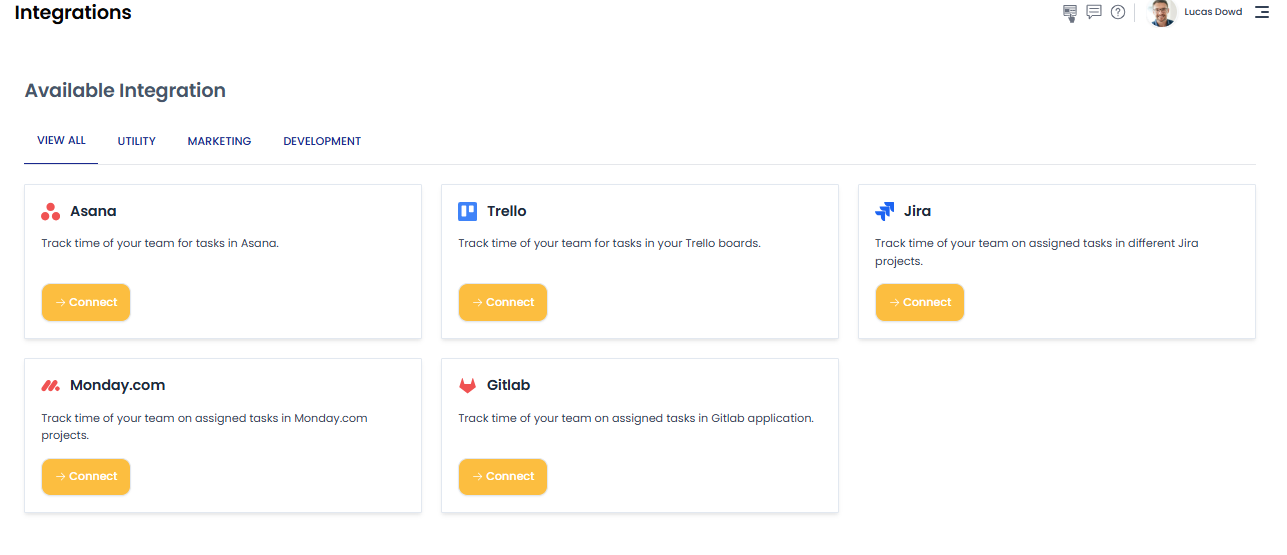
Step 2: Connect Your Gitlab Account
- Click on Connect button for Gitlab.
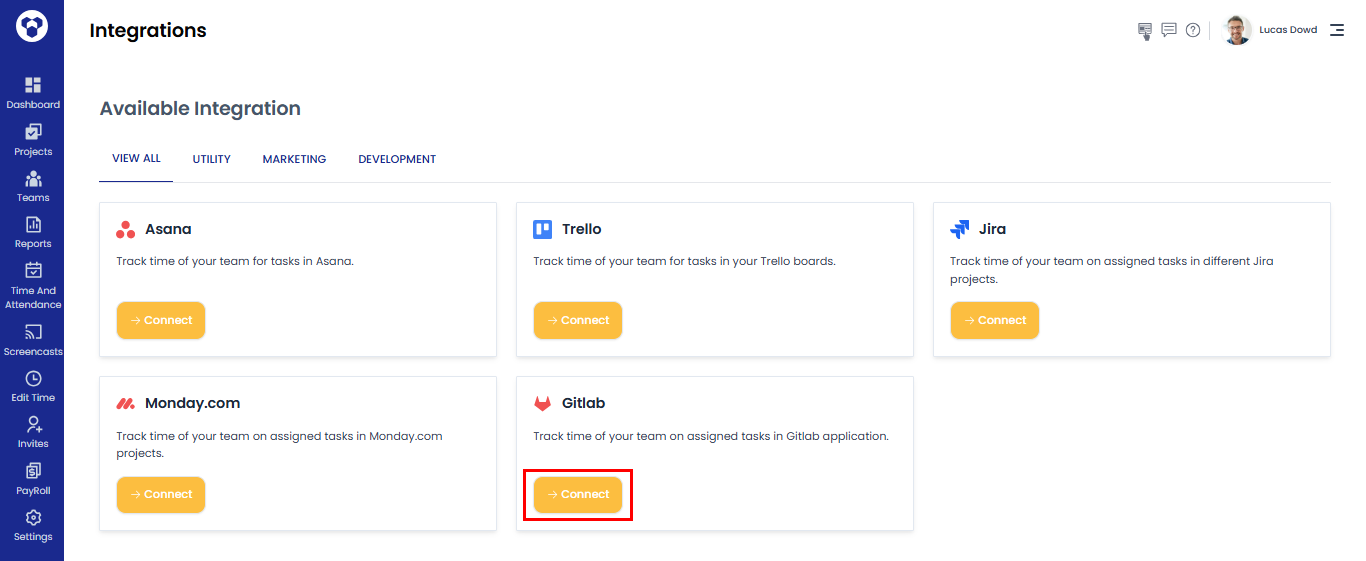
- A pop up will appear. Click on the Connect now button.
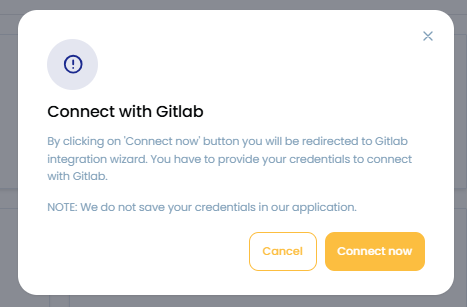
- The Gitlab login page will open. You will need to enter your Gitlab email and password.
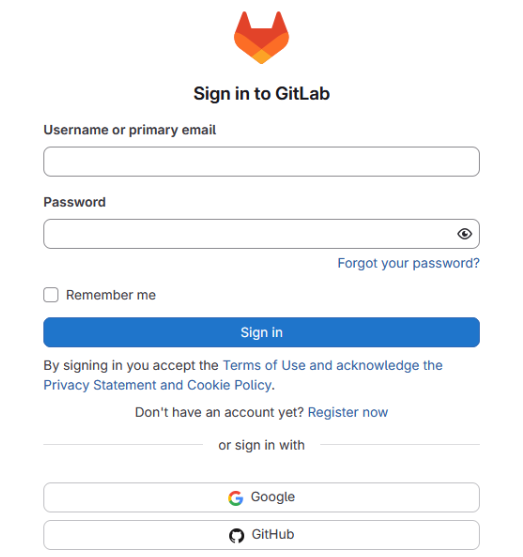
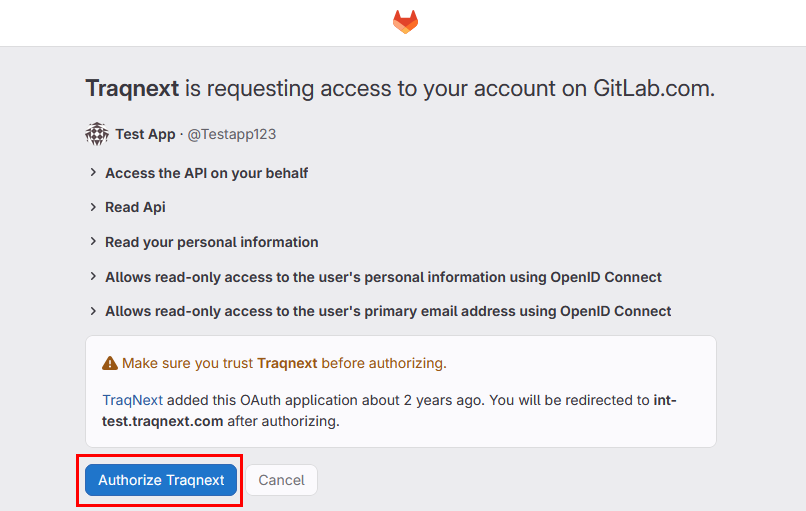
- Once you log in, you will be redirected to the authorization page. Clicks on Authorize TraqNext button.
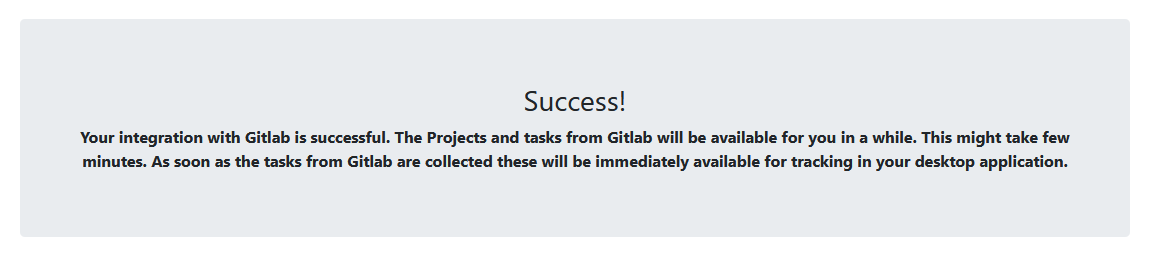
- After that, a success message will appear, and within a few moments the Gitlab tasks will start showing in the TraqNext desktop app.
Step 3: Task Visibility
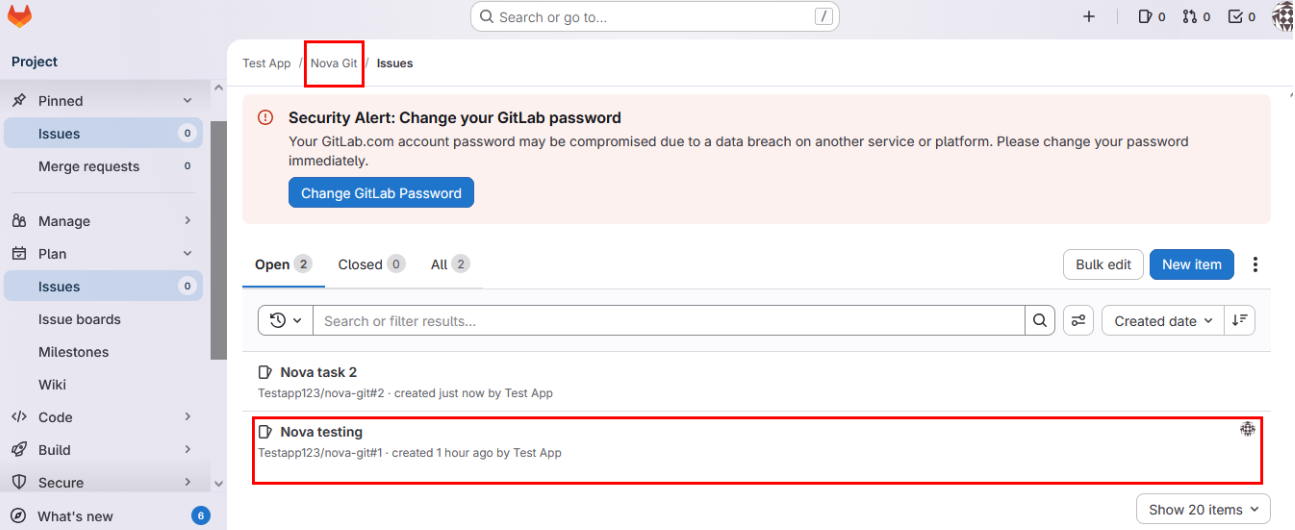
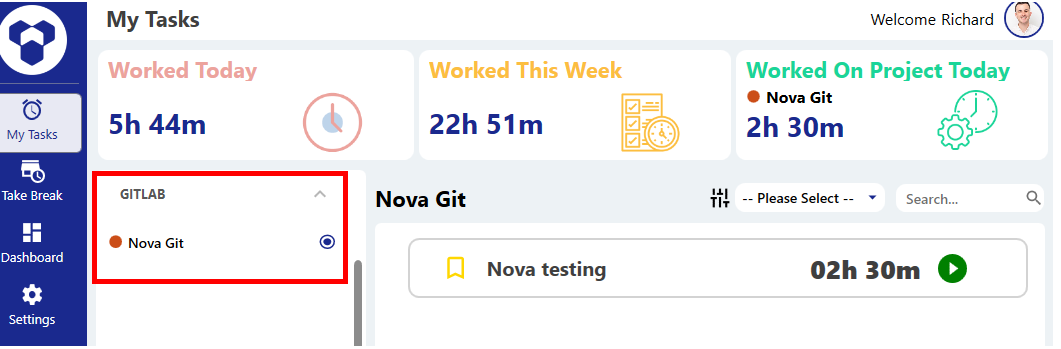
Only the GitLab issues assigned to a user will be fetched for that user and shown in the TraqNext Desktop App. Issues not assigned to that user will not be fetched or displayed.
As you can see in the image, the project and issues created here will be synced and appear in the TraqNext desktop app.
Once GitLab issues are synced and appear in the TraqNext desktop app, you can track them here.
Authentication Issues & Re-Connecting
If authentication fails due to GitLab’s policies or token expiry, TraqNext will email you.
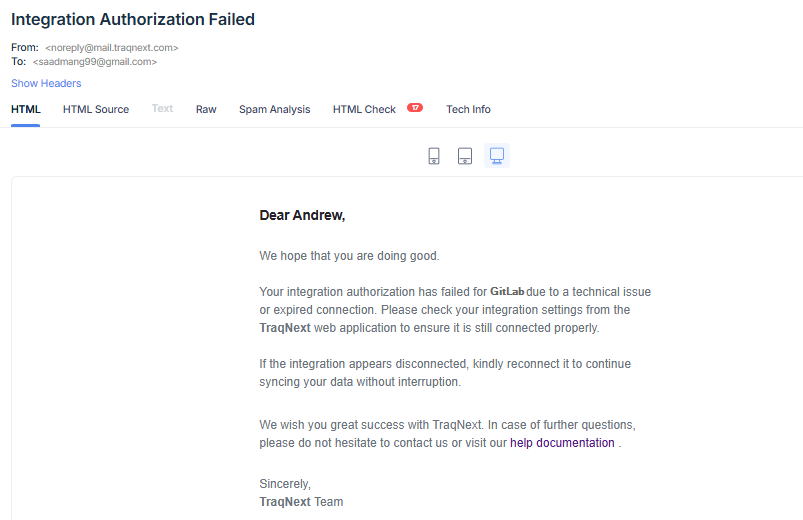
How to Fix it:
Simply click the Connect button again from the TraqNext Web App integration page and provide your credentials to restore the integration and fetch the latest data.